Getting Started With TMUX: A Terminal Multiplexer
By Kevin Hou
4 minute read
TMUX is a terminal multiplexer that allows you to have a GNU-like experience while staying entirely within your terminal client. It works hand in hand with VIM (or emacs) and gives you a lot of powerful tools that are typically only available to you if you use a GUI.
Setup
1$ brew install tmux
2
3$ tmux -V
4# > tmux 2.7 when I did this
5
Getting Started
-
Entering TMUX session:
$ tmux new(Note: you must type$ source activateto use some packages, your Conda environment, etc.)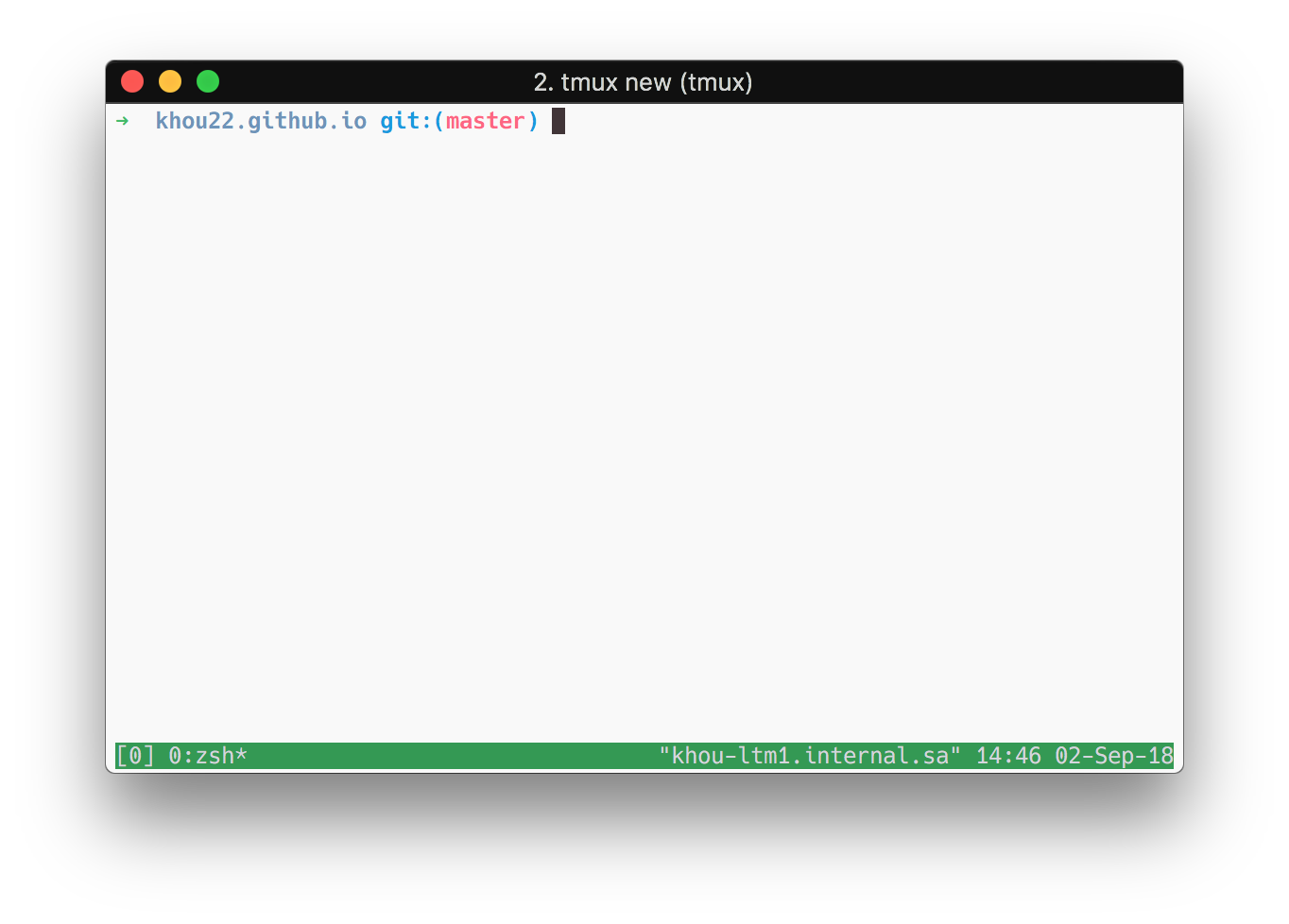
-
Exiting TMUX session:
$ tmux exit. This is not the only way to return to your original terminal session. In fact, one of the strengths of TMUX is that you can run a TMUX session in the background.
Using TMUX Commands
Control + bto enter a TMUX command. Nothing will visually change- After pressing
Control + b, can type:to get the TMUX prompt
Managing Sessions
After you've created a session, you can temporarily exit or detach this session. To do this, press Control + b then d to detach.
To see a list of suspended sessions, you can type $ tmux ls. To get back to a session, type $ tmux attach-session -t <id> (shortcut: $ tmux a -t <id>). You can also use $tmux a # to go to the most recent session.
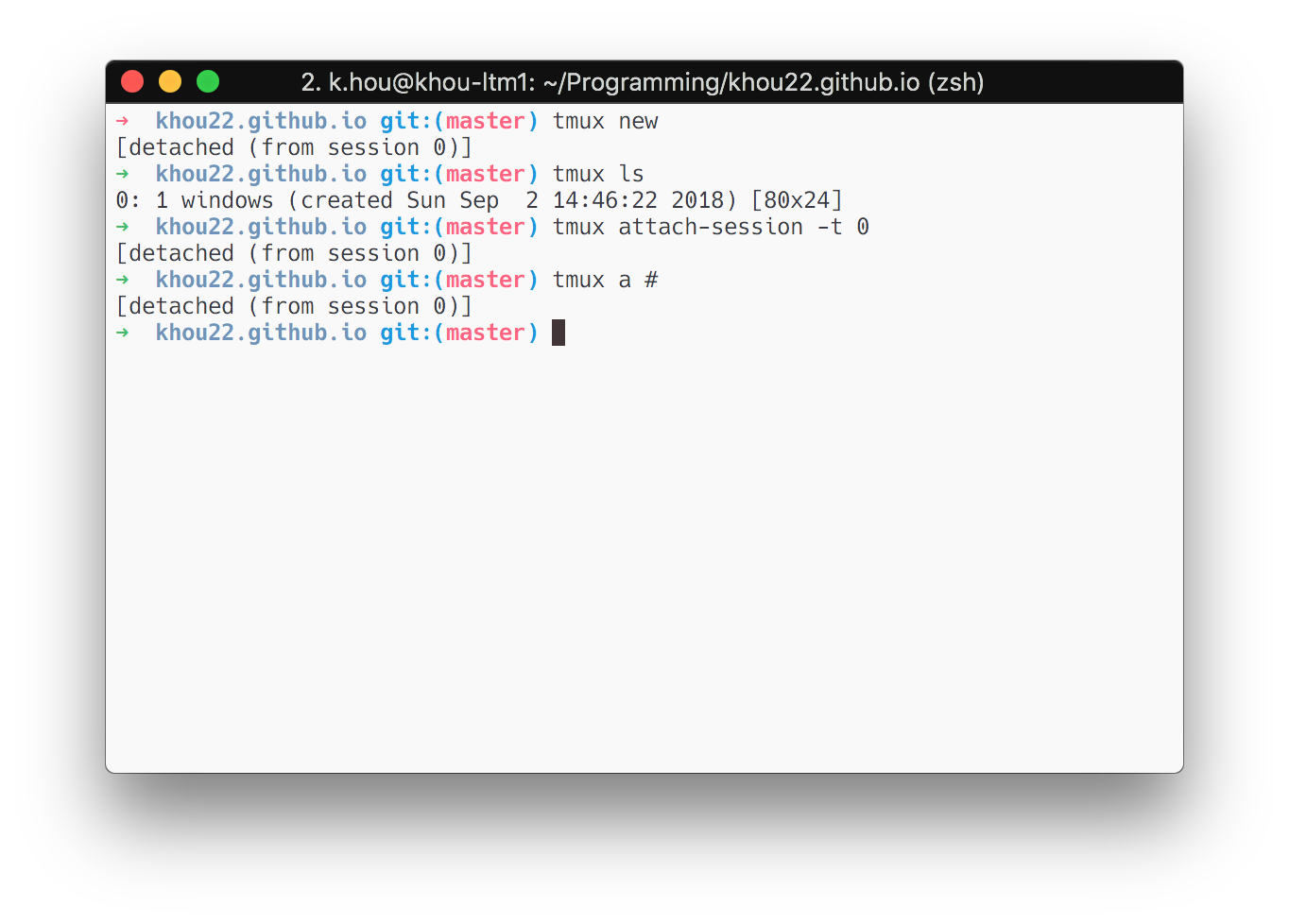
Switching Between Sessions
Once you're in a TMUX session, you can press Control + b and s to get a dialogue of the open sessions with a preview of what they look like. You can also use Control + b and (/) to move left/right between existing sessions. To get a read-only list from your main shell, you can type $ tmux ls.
To kill the session you're currently in, type: Control + b and : kill-session. You can also do this from your main shell: $ tmux kill-session -t <name or id>.
To kill all sessions, type: $ tmux kill-server.
Naming
Instead of relying on ambiguous ID numbers, you can also attach names to session. To start a session using a name, type: $ tmux new -s <name of session>. To get back to that session, use the name of the session in place of the ID: $tmux a -t <name of session>.
Panes
- Split horizontally:
Control + bthen" - Split vertically:
Control + bthen% - Move pane left/right:
Control + bthen{/} - Move between panes using
Control + band any of the arrow keys - Show pane numbers
Control + bthenq - Switch to pane
Control + b,q, then<pane number> - Close pane:
Control + bthenx - Resizing:
Control + bthen:resize-p <direction> <num-cells>. The direction is-U,-D,-L, or-Rfor up, down, left, and right, respectively. - In my
.tmux.conffile, I turned on mouse interaction so I can switch panes using my mouse clicks. You can also drag to resize panes.
Copy Mode
One of the other strengths is that you can enter "copy mode" to copy certain parts of the terminal. To enter this mode, press Control + b and [. You can now navigate using VI bindings press Enter to copy. There are a number of helpful commands that you can use that can be found here: https://tmuxcheatsheet.com
References
- Handy TMUX cheat sheet